Mesh Pop-Up Menu
A pop-up menu is available in the Data Settings and Properties to provide access tools for smoothing meshes, creating deviation maps, and managing scalar information, as well as for exporting meshes and executing macros. You should note that the items available in the pop-menu are dependent on the number of meshes selected — one or multiple.
 Items Available for a Single Selection
The following items are available when you select a single mesh in the Data Properties and Settings panel.
Measurement Inspector
Opens the Measurement Inspector panel (see Using the Measurement Inspector).
Available only for meshes with scalar values.
Export Mesh to File
Lets you save the selected mesh in a number of different file formats suitable for 3D printing and other purposes (see Exporting Meshes).
Export as ORSObject
Lets you save the selected mesh in the ORSObject file format (*.ORSObject extension). See Exporting Objects.
Execute Macro
Provides a shortcut for selecting macros that can be executed for the selected mesh (see Playing Macros).
Mesh Decimator
Opens the Mesh Decimator panel, in which you can reduce the number of vertices, edges, and triangles in a mesh (see Decimating Meshes).
Mesh Smoothing
Opens the Mesh Smoothing panel, in which you can smooth meshes with a selected method and number of iterations (see Smoothing Meshes).
Mesh Subdivider
Opens the Mesh Subdivider panel, in which you can increase the resolution of the selected mesh by dividing its triangles into smaller units (see Subdividing Meshes).
Mesh Registration
Opens the Mesh Registration panel, in which you can register a selected mesh with a reference (see Registering Meshes).
Signed Deviation Map
Calculates the deviation (distance) between two sets of meshes and shows the error as a colored map on the mesh surfaces (see Generating Deviation Maps).
Deviation map measurements are added to the selected mesh and appear in Scalar information box (see Scalar Information).
Deviation Map
Calculates the deviation (distance) between two sets of meshes and shows the error as a colored map on the mesh surfaces (see Generating Deviation Maps).
Deviation map measurements are added to the selected mesh and appear in Scalar information box (see Scalar Information).
Get Non Manifold Edges Count
Lets you compute the number of non-manifold edges in a selected mesh. This function can be used to verify that a mesh does not contain any non real-world geometry, such as holes, unattached edges, and so on.
How to Compute a Non Manifold Edges Count
- Right-click the mesh you need to analyze and then choose Get Non Manifold Edges Count in the pop-up menu.
The results are computed automatically and appear in the Mesh Information dialog, shown below.
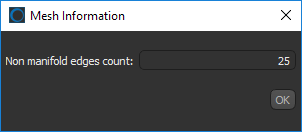
You should note that a value of 0 indicates that the mesh does not contain any non real-world geometry.
Delete Selected Scalar Values
Lets you delete selected measurements from scalar meshes (see Scalar Information).
Available only for meshes with scalar values.
Import Scalar Values From a CSV File
Lets you import scalar values contained in a selected CSV file.
Mapping Scalar Values From
Lets you map selected measurements contained within a scalar mesh to another mesh or multi-ROI (see Scalar Information).
Available only for meshes with scalar values.
Copy Scalar Values From
Lets you copy selected measurements contained within a scalar mesh to another mesh (see Scalar Information).
Available only for meshes with scalar values.
Align Centroid With
Automatically aligns the centroid of the selected mesh with the centroid of another object. Other applicable objects include volumetric image data, regions of interest, and meshes. These objects can be selected in Choose the object to align with dialog, as shown below.

You can undo the applied translation by clicking the Undo  button in the Move panel. You should note that you may have to activate the Displace
  tool to access undo.
Apply Transformation From
Lets you apply simple transformations to the selected mesh, such as translations and rotations, that were applied to another object. You should note that only objects that were translated and/or rotated, will be available in the Choose an object dialog, as shown below.

You can undo each applied transformation by clicking the Undo button in the Move panel. You should note that you may have to activate the Displace tool to access undo.
Copy
Copies the selected mesh. Copied meshes will appear as new items in the Data Properties and Settings panel.
Create a Box From Current Bounding Box
Automatically creates a box that corresponds to the dimensions of the selected mesh.
Items Available for Multiple Selections
The following items are available whenever you select two or more meshes in the Data Properties and Settings panel.
Export as Multiple ORSObjects
Exports the selected items in the ORS Object file format (*.ORSObject extension) to a selected folder as multiple files (see Exporting Objects).
If the selected meshes share the same name, their file names will be appended with a sequential number.
Export as ORSObject
Exports the selected items to an ORS Object File (*.ORSObject extension) to a selected folder (see Exporting Objects).
Execute Macro
Provides a shortcut for selecting macros that can be executed for the number of items selected.